Class 6 · Unit 0: Getting to know the laptop · Lesson 0.2 · 40 min
Point, click and drag
Imran tapped the laptop screen like a phone. Nothing happened. The screen can't feel your finger — so how do you touch anything?
Today you will: Point, click and double-click · Right-click and drag to draw a chinar leaf · Scroll like on a phone
Story
Imran tapped the laptop screen with his finger, the way he uses his phone. Nothing happened.
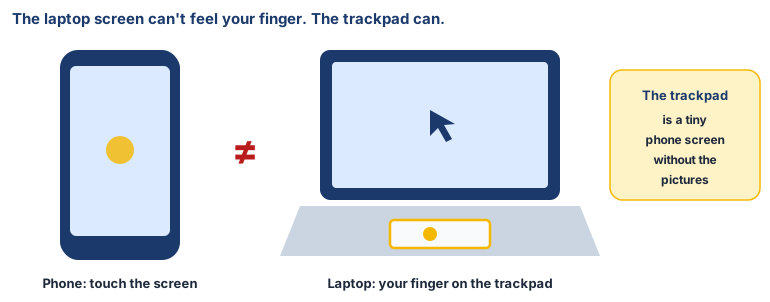
Teacher: “This screen doesn't feel your finger. Here, the trackpad is your finger.” (She moved two fingers on the trackpad, and the page slid up like a phone screen.)
Imran grinned. "So the trackpad is a tiny phone screen without the pictures!"
Watch
Point, click and drag, — scan code 6.0.2 in the printed book.
Warm up your fingers
Find these keys and press each one gently once: Space, Enter, Backspace. Then place your two first fingers on the keys with bumps, F and J. Keep them there for a count of 10.
On the laptop
Mission 1: Point and click (pairs, 7 min)
- ☐1
Point: switch on, then move the pointer to each corner of the screen and back.
- ☐2
Click Start once; click an empty spot to close the menu.
- ☐3
Predict: what will a double-click on the Class 6 folder do? Try it, then close it with the X.
- ☐4
Right-click the desktop. A small menu appears. Press Esc to close it.
Mission 2: Drag and scroll (pairs, 8 min)
- ☐5
Drag: open Paint (Start → type Paint → Enter). Hold, move, and draw a chinar leaf.
- ☐6
Scroll: in the Class 6 folder, slide two fingers up and down.
- ☐7
Close Paint. Save? → Don't save.
No laptop today?
Draw a rectangle on paper — your paper trackpad. Your partner calls "click", "double-click", "drag to the top", "scroll down", and you do each move with your fingers.
Now you know
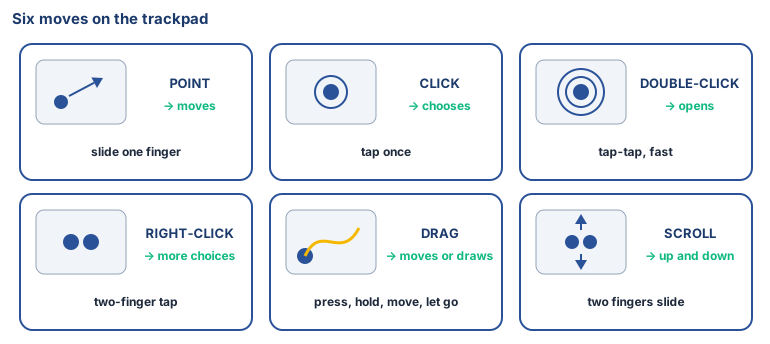
- The pointer shows where you are on the screen.
- Click chooses. Double-click opens. Right-click shows more choices.
- Drag: press, hold, move, let go.
- Scroll: two fingers slide on the trackpad, or roll the mouse wheel.
Debate it
Some grandparents find a mouse hard to use, because their hands shake or their eyes are tired. What could a laptop do to help them? (Hint: bigger pointer, voice.)
Check yourself — practice, not a test
1. Match the action to what it does:
Double-click · Right-click · Drag · Scroll
Match with: opens a folder · moves the page up and down · moves or draws something · shows more choices2. What does the pointer look like when you are over a place where you can type?
- ○ A hand
- ○ An "I" shape
- ○ A spinning circle
- ○ A cross
3. A laptop screen usually works like a phone screen when you touch it. (most lab laptops are not touch screens)
- ○ True
- ○ False
4. Drawing with drag: (put in order)
- 1. Point
- 2. Move
- 3. Press and hold
- 4. Let go
Remember
Click to choose. Double-click to open. Right-click for more.